

Been a long field season this year, which has kept me away from this site. Not over yet – still have one more session left, running through the end of next week. Then I’ll be back home, and hope to get this site cranking again soon.
So I mentioned to a friend that I had just received a review copy of the new second edition of Making Maps by John Krygier and Denis Wood, and she exclaimed, “Oh, our university GIS department loves that book!”. No surprise – since its publication in 2006, the first edition has a become a staple on many mapmakers’ bookshelves, and I expect the second edition will “suffer” a similar fate. If you make maps, you’d be well-advised to have some version of this title nearby for inspiration and guidance.
One thing to keep in mind is that this isn’t really a how-to guide, or a cookbook on how to create maps. Krygier and Wood look more at the rationale you should use in making basic design decisions for your map and how to put it all together, and less so at how all the pieces fit together at the end (though that’s not entirely ignored). Examples abound, but usually look at the individual pieces of a map (color, typeface, symbology, classification, projection, etc.) rather than the whole. Think of this as the mapping equivalent of McGee’s kitchen science classic, On Food And Cooking; it will give you the information and understanding needed to figure out why a recipe works, but doesn’t actually give you any recipes to follow. For examples of good mapmaking practices, you might consider Brewer’s Designed Maps: A Sourcebook for GIS Users; for a more how-to oriented approach, Peterson’s GIS Cartography: A Guide to Effective Map Design is very good, albeit crazily over-priced. But Making Maps is the book I’d consult first for guidance and inspiration.
One point to keep in mind is the book’s design; it’s very visually-oriented, and the layout on most pages isn’t what I would call linear. This makes it a poor choice for a reference title, but that’s not really its intent. The design forces you to go through entire sections to pick up their meaning, and I’m pretty sure that was the authors’ intent. They don’t want you to pick up just a piece here and there about various aspects of map design, they want you to think about the whole process of putting together a map.
I do have a few quibbles with the book, two minor, the other major:
1. The book is primarily in grayscale, with a few random color plates scattered about, and only the chapter dealing with color in full color. The authors explain at the end that the basics of map design can be explained without using color, and that therefore the use of color is kept to a minimum to keep the cost of the book down. I understand this, but can’t help but think that a greater use of color throughout the book would have made it more effective.
2. The book is likely to be adopted by many courses as a primary or supplementary text. While each chapter ends with a nice page of references to additional titles, one thing I would have loved to have seen are exercises/problems to engage the reader in a more active study of the issues raised by the chapter.
3. Finally, the book makes one major misstep. A map of the non-stop round-the world trip of the Voyager aircraft in 1986 is used repeatedly as an example to illustrate many of the ideas raised by the chapters. And it’s a terrific map to use for that purpose:
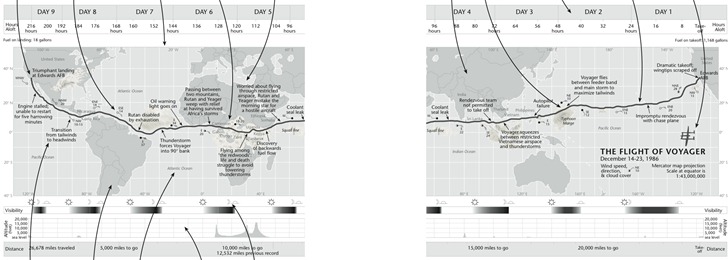
But about halfway through the book, the authors highlight that the direction of travel of the Voyager, from east to west (right to left), is counter to the normal direction we expect to see chronological events portrayed, from left to right. They suggested to their editor that they flip the map upside down to make the time direction left to right, but had this suggestion rejected. But since it’s their book now, they do that:
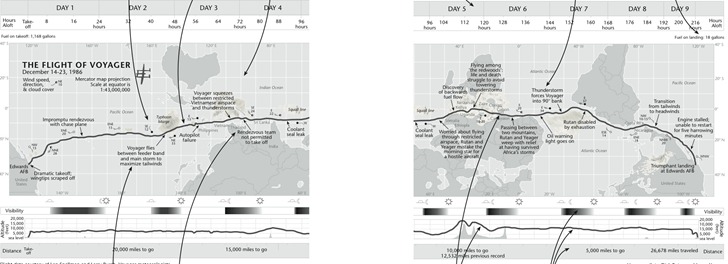
Noooooo! I couldn’t disagree more with this design decision. This is a map, a geographical construct, and geographic parameters should be primary here; you don’t mess with 500+ years of north being at the top unless there’s a very good reason for it, and time isn’t a good reason. Far better to put a few arrows in to indicate direction of travel/time than to make this directional flip. The author’s argument that the shape of South America is enough to “re-orient” the map for the viewer is undercut by the obscuring of the shape of Africa and North America, and the Pacific Ocean’s expanse, by plotted weather systems. It’s far easier to make the mental adjustment of time going right to left than dealing with “the world turn’d upside down”. I really hope they re-think this for the next edition.
If you don’t have the first edition, it’s a no-brainer for me to highly recommend this new second edition. But if you do have the first edition already, is the second edition worth the cost? Tough call. On his Making Maps blog, John Krygier goes through a list of the differences between the first and second edition, which included larger page size, adding extra map examples, and also paring down some of the content; the new edition is about 50 pages shorter than the first. I compared my copy of the first edition with the second, and there still is a substantial amount of overlap in material between the first and second editions, plus there are a fair number of examples missing from the second edition that I would have preferred they kept. Overall, while the second edition works better at presenting and explaining concepts than the first edition, it’s a toss-up in my mind whether it’s worth spending the extra $40 to upgrade if you already have the first (though you could, of course, buy the second edition for yourself and give your first edition to a starving cartography student ;-). But if you don’t have the first edition, and are serious about making good maps, grab a copy – you’re unlikely to be disappointed.
Note: PhotoFly is now 123D Catch; click here for the main product page.
A few years ago, Microsoft make a big splash with Photosynth, a program that analyzes 2D photos of an area, computes their relative orientation, and lets you view them in a quasi-3D environment. Here’s a live Photosynth of the London Eye:
PhotoSynth actually calculates a 3D point cloud from all the photos…
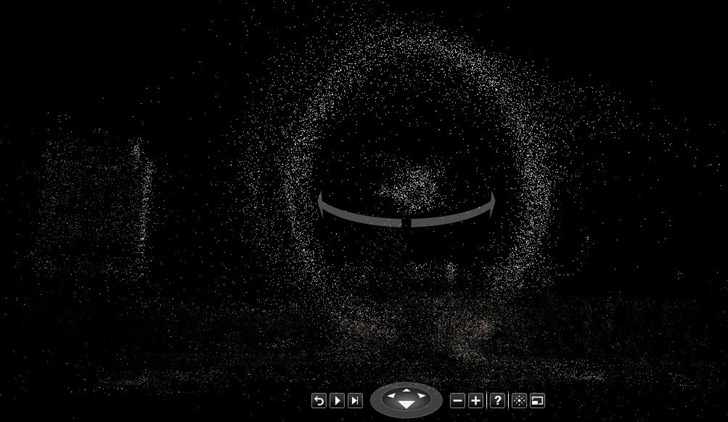
… but the photo views are still in 2D, i.e. they’re not overlaid on top of the 3D data. And there’s no easy way to get the 3D data out; there’s a hack to do that outlined here that can do it, but it’s a pretty complicated process.
AutoDesk Labs has just released version 2.1 of their free program PhotoFly, which can take 2D photos of an object or environment and generate a full 3D model with a photo texture overlaid on top of it. This thing is jaw-droppingly amazing, not least for how easy it is to do:
1. Shoot photos of an object or environment from multiple positions. A simple point-and-shoot digital camera will work, though AutoDesk recommends a wide-angle DSLR for some applications. They have a full video tutorial on how to get the best results.
2. Install the PhotoFly Photo Scene Editor software on your computer (Windows only).
3. Select the photos you want to use to create the model; PhotoFly will upload them to AutoDesk’s servers, which process them, generate the 3D model and texture, and then let you download them for viewing on your home computer.
I had some photos taken for PhotoSynth of an archaeological excavation of a pithouse I did back in 2008; I selected a number of them, and uploaded them to PhotoFly. Though the pithouse was reburied three years ago, I was able to see an incredible 3D reconstruction:
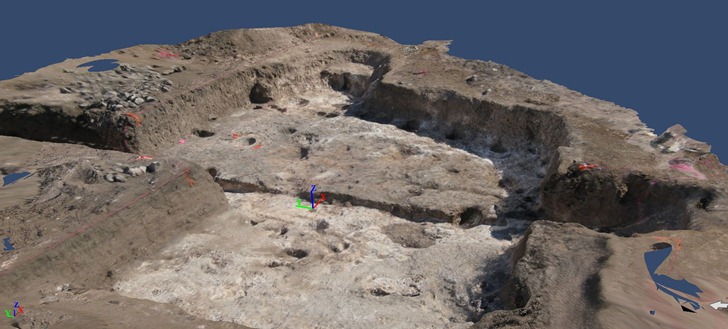
This isn’t just a static oblique view – this is a fully interactive 3D model. You can pan/tilt/rotate the model using the software in real-time. PhotoFly even includes a movie maker that lets you create animated “flythroughs” of the model; here’s one I generate from the pithouse model above:
All the 3D model and texture data is stored on AutoDesk’s servers; if you share the 3dp PhotoFly file with someone else who has PhotoFly installed on their computer, that data will automatically be downloaded to their computer for local viewing. You can try that with the 3dp file for the pithouse above, which I’ve put online for download.
What else can you do?
- While the initial scene isn’t georeferenced, if you have coordinate positions for a spot in the scene, you can use those to georeference the entire scene.
- You can use object with known dimensions to calibrate the dimensions of the entire scene, then do accurate measurements of any object in the scene.
- PhotoFly calculates presumed xyz orthogonal (perpendicular cartesian) directions, but if you have a known horizontal or vertical direction, you can modify those directions to match the known direction.
- You can export the 3D model and textures in a number of standard formats, including DWG, OBJ and LAS. You could then import them into a 3D-capable program like Blender (free and open-source) for editing or animations. Georeferencing and calibration data is included in the export.
- If you use a OBJ file importer in Google Sketchup, you can load the 3D object into that program:
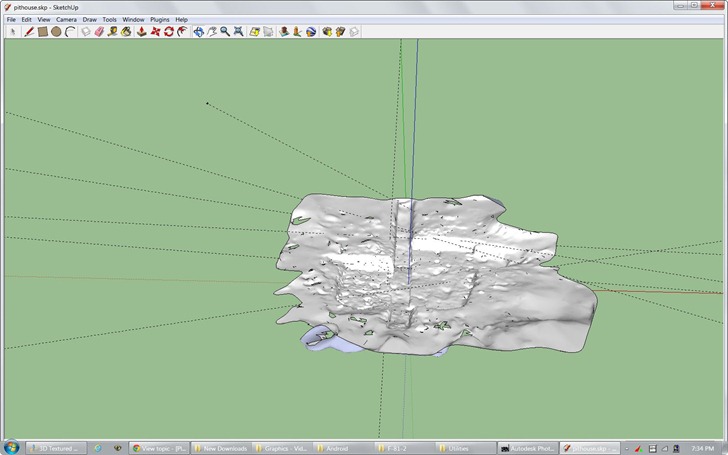
- Export into Inventor Publisher Model format (ipm) for viewing on iPhone and Android devices (couldn’t get the Android viewer to work, though).
- You’re not limited to 3D spaces; you can shoot and create a 3D model of an object like a sculpture, artifact, piece of furniture, etc..
Drawbacks:
- Only works with unedited photos from a digital camera; no scanned photos, or photos modified in a digital editor. This is in contrast to PhotoSynth, which can combine digital camera photos with scanned historical photos.
- AutoDesk says you need to take at least three photos from different angles, but I’ve found that’s way too few – you wind up with holes in your scene. Take as many photos as you can, and try to make sure that every spot you want in the scene is visible in at least three photos. And definitely follow AutoDesk’s shooting guidelines.
- All the photos should be taken at the same time, and with comparable exposures, for best picture matching.
- Sometimes, the program hangs up with a large number of photos to upload; in that case, reduce the number of selected photos and try again.
- Sometimes, large chunks of the scene appear to be missing; selecting a reduced set of photos and trying again can sometimes fix this.
- Sometimes, some photos can’t be correctly matched to the proper scene, and aren’t used. However, the Photo Scene Editor includes a utility that lets you manually match points in the unmatched photos to corresponding points in a matched photo. Tip: If you have a large number of unmatched photos, only manually match one photo that is representative of all the unmatched photos, then resubmit the scene for processing; more often than not, the addition of that manually-matched photo allows other unmatched photos to be processed.
- While you have the option of waiting for a scene to be processed, or being emailed when it’s done with a download link, I recommend always asking for an email; I’ve had occasions where a scene I waited to get processed got lost somehow.
- Finally, while the program is free now, AutoDesk has only committed to keeping it free until the end of 2012; at that point, it may charge for some services, or discontinue it entirely. However, any scenes exported into another format (e.g. OBJ) can be kept and used in program that support that format.
AutoDesk is still actively working on the program, so I’m sure some of these issues will be fixed eventually. But even with these drawbacks, it’s a pretty freaking amazing program that you should definitely check out.
gvSIG is a full-featured open source GIS program, written in Java; I’d go so far as to call it one of the two leading open source GIS programs currently available (Quantum GIS is the other). Version 1.11 was released recently, with standard installers available for both Windows and Linux (and a special installer for Mac). There’s an older version of gvSIG as part of Jo Cook’s Portable GIS on a stick package, which you can run from a thumb drive on Windows or Linux systems without installing the software directly. However, it looks as though there hasn’t been any work on that package for quite a while, so it’s unclear whether the latest version of gvSIG (or the other software programs in that package) will be added anytime soon.
However, the gvSIG office has just announced release of portable versions of gvSIG 1.11 that run on Windows and Linux systems from a thumb drive; you can also run it from a separate direction on your PC, bypassing full program installation completely. Total size of the unzipped package is 285 MB, making it fit easily on a 512 MB or larger thumb drive; if you compress the files in Windows (right-click, choose Properties, choose Advanced, then “Compress contents to save disk space”), it drops to 233 MB, making it just barely fit onto a 256 MB thumb drive. It contains not just the program and associated files, but even the Java Runtime Engine, so you don’t need to have Java installed on the system you’re running it on.
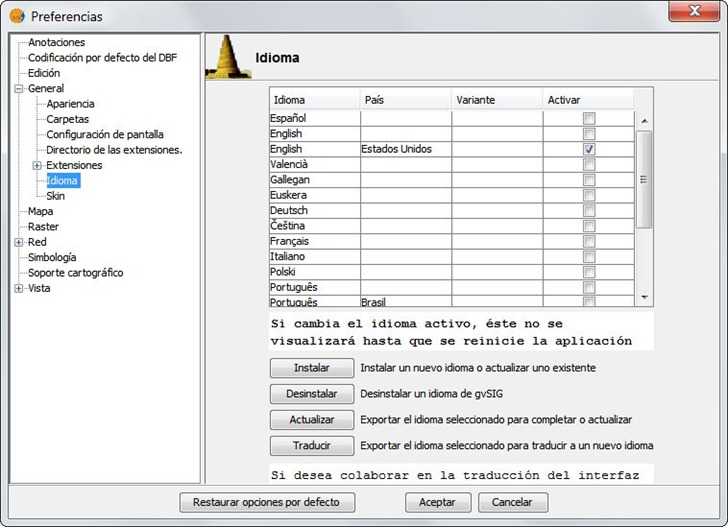
One minor quirk: it starts up with the default language being Spanish, not surprising since it’s developed in Spain. To switch over to English, or another language:
1. Run the program (gvsig.exe file in the bin directory for Windows, gvSIG.sh for Linux).
2. Go to the “Ventana” menu listing, and choose “Preferencias”.
3. Expand the “General” section, and choose “Idioma”.
4. Select your desired language (English below), click “Aceptar” at the bottom , then close and re-open the app.
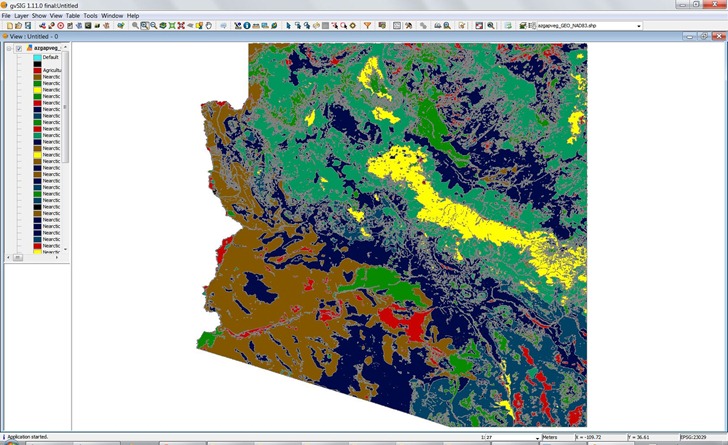
Seems to work as well as the standard installed desktop version, with all current extensions:
Two weeks ago, I posted about a web app from Metzger and Willard that offers useful info like PLSS data and a topo quad index in a Google Earth plugin interface. Poking around their site further, turns out they have a page called Earth Survey, a set of KML network links that installs those features into the stand-alone version of Google Earth, plus additional links that offer data not found in that web app. KML network links include:
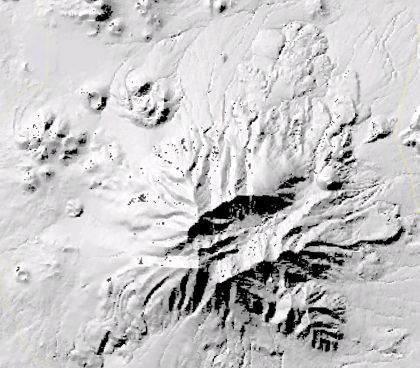
QUADS – Displays an index for USGS quad maps, and also the maps themselves as an overlay. Also has overlays for aerial digital orthoquads (color and B&W), and shaded relief maps (color and B&W). The color relief is pretty low-res, though, and the B&W relief appears to be based on unpatched SRTM data, as it has a fair number of holes:
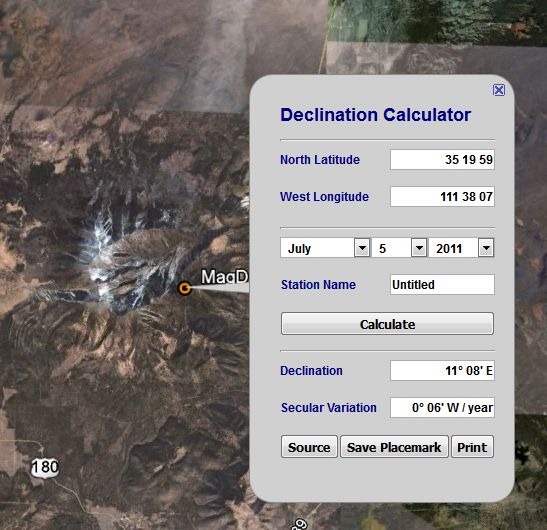
MagDec– Magnetic declination for any point in the world:
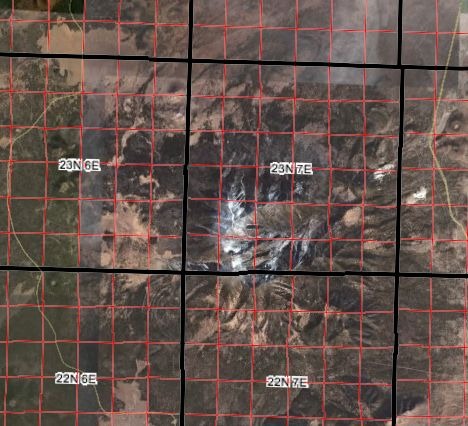
PLSGE– Township/range/section/quadrant/subquadrant, meridian and special survey overlays:
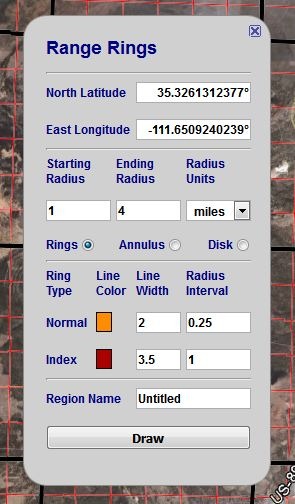
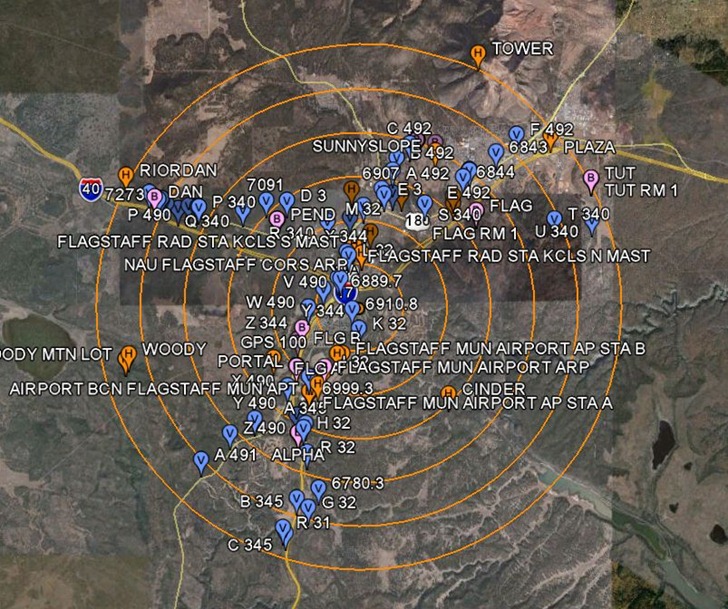
RINGS – Easy range ring generator for Google Earth:
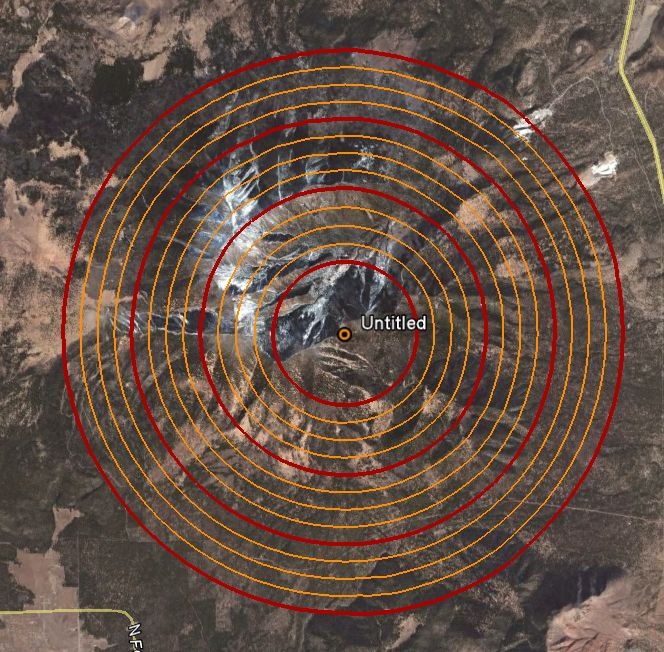
Rings show up in a separate folder called “Saved Places”; right-click on that folder and choose “Save As”, and you can save the rings as a static KML file for future use.
NGSCS – National Geodetic Survey Control Stations. Note that you have to click on Query Setup to specify search conditions, and then check the Search Results box in the Place pane to view them. Unlike the web app, there doesn’t appear to be a way to save a static KML file for a control station, though you can save the network link for that search result.
Other available links include a NAD27 to NAD83 shift calculator, a State Plane Coordinate System (SPCS) converter, and front-ends for the NGS online tools DEFLEC09 (“represents the deflections of the vertical at the surface of the Earth.”), GEOID09 (“refined hybrid model of the geoid in the United States and other territories”), VERTCON (“NGVD29-to-NAVD88 and NAVD88-to-NGVD29 orthoheight conversions”), and XYZ (“converting between Geodetic Latitude-Longitude-Ellipsoid_ht and XYZ on the GRS80 Ellipsoid”).
A while back, I posted about a free web app from Metzger and Willard that shows National Geodetic Survey control points (benchmarks) near a specific area, and lets you view data for those landmarks. I’ve just noticed that they’ve created a newer web app called the Earth Survey Plugin, running in a Google Earth browser plugin that not only has the same capability, but also adds a bunch of additional features:
- An NGS Survey Marker capability that works very similarly to the previous app, but now offers the ability to export the data into a static KML file
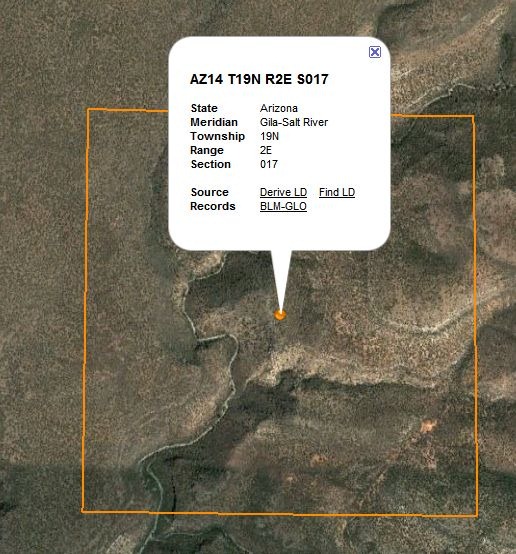
- A PLSS point geocoder function that either gives you the section data for the point in the middle of the display:
… or lets you enter the PLSS parameters, and find the center point associate with them:
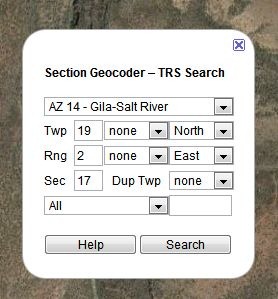
These can also be saved as a KML file.
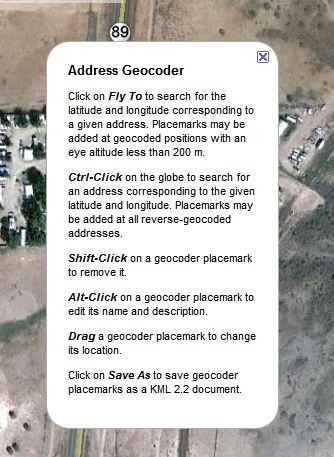
- A click-to-geocode function:
Plus, a set of overlays:
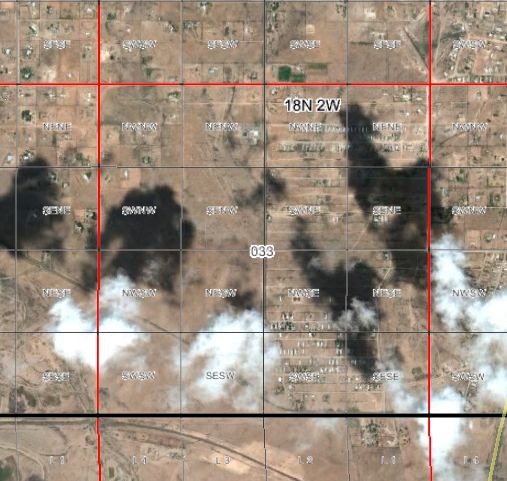
- PLSS sections, including quadrants and subquadrants:
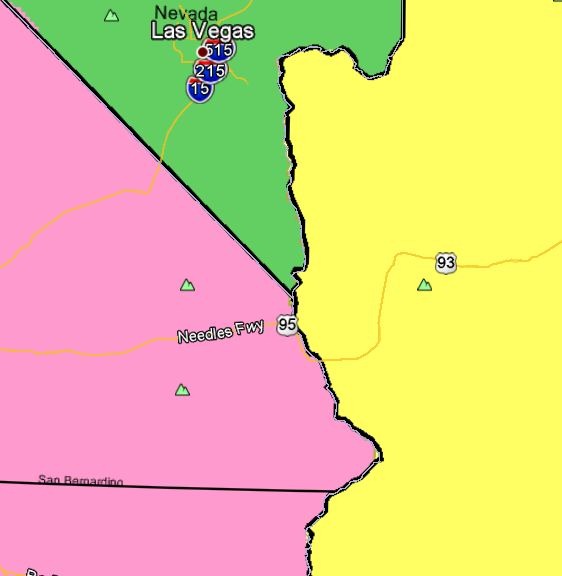
- Principal meridians:
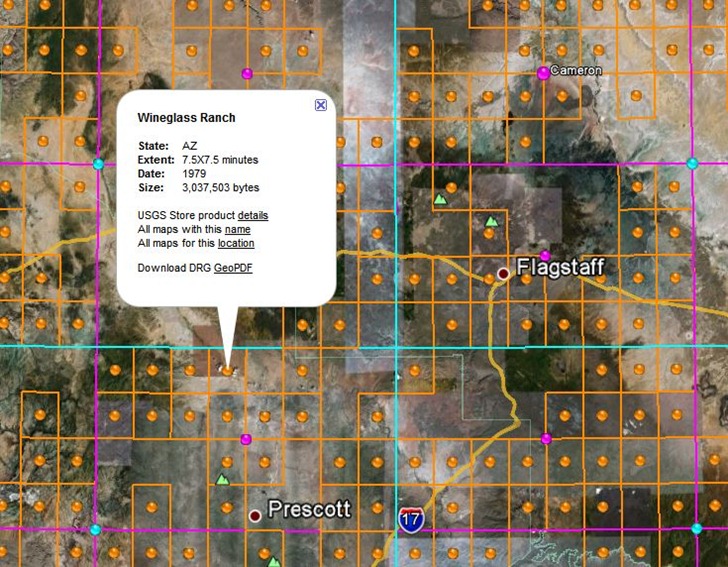
- USGS topo quad index; orange dots for 1:24K, purple for 1:100K, cyan for 1:250K. Clicking on a dot brings up a pop-up balloon with the name of a quad, and a direct link to the GeoPDF for that quad at the USGS store. Note that GeoPDF quads are not currently available for quads in US National Forests, and that at this time, some states (e.g. AZ, CA) don’t have full topographic information on their GeoPDF quads.
- Actual USGS topo map views, with the scale depending on your zoom level.
I’ve done a long series of posts on this site about various tools you can use for creating custom vector maps for Garmin GPS units, one of the most powerful features for these models (even if Garmin itself doesn’t directly support it). One especially powerful feature is the capability to create your own custom point, line and area symbols for these units, either replacing Garmin’s default symbology or creating new types for use in your own map. It’s not a trivial process, and while I’ve covered a number of tools that help somewhat with creating custom symbology here and here, all of them have been lacking a bit in functionality and ease of use. But I’ve now dumped all of them in favor of a new tool I’ve found: TypWiz. You’ll still need to learn something about what TYP files are and how to use them, but TypWiz dramatically lowers the difficulty barrier for creating and editing them.

- Loads in existing TYP files for editing, in either text or compiled TYP format
- Saves TYP files in either text or compiled TYP format (latter requires cgpsmapper to be installed on your system)
- Creates point, line and polygon symbology, with complete control over type and subtype, draworder
- Easy-to-use graphic symbology editor
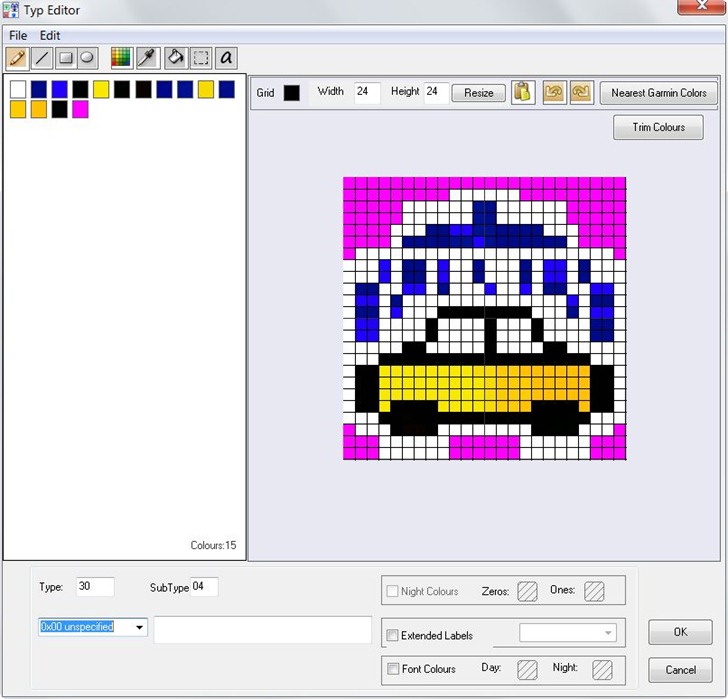
- Optionally converts your selected colors into the nearest 8-bit color equivalents for older Garmin models, i.e. the previous OS used in the 60C and color eTrex models. Newer models use a wider 16-bit color range.
- Code section shows TYP file text code for that symbol; changes in the graphic editor show up automatically in the code section, and vice versa.
- You can also save graphics from the editor as bitmap files, for use as custom POI icons or custom waypoints on compatible Garmin units. Note that these are saved in 24-bit BMP format; older units require 8-bit BMP files with 96-dpi resolution.
- Short but very clear program manual.
You should also poke around the main OSM Tools site, home of TypWiz, as there are a bunch of additional utilities worth checking out:
- MapSource Uploader – A program to help install OSM-based Garmin maps into MapSource/BaseCamp.
- Route Editor – GUI to create custom Garmin routing styles
- mp2osm – GUI for converting Garmin mp files into OSM format (only works for non-copy-protected files).
- img2typ – Takes a compiled Garmin map in .img file, extracts all POI/line/polygons types, and creates an editable TYP file that lets you customize that map.
- … and more
Back in February, I had a long post about the FCC’s conditional approval of LightSquared’s wireless broadband proposal. This waiver was vigorously opposed by the GPS industry because tests by Garmin showed that it would seriously disrupt GPS in areas where it was implemented. Read the post for a full rundown, but briefly LightSquared’s plan requires high-power transmissions in frequencies immediately adjacent to the GPS band, which drown out the GPS signal entirely. LightSquared dismissed these Garmin results, stating in a comment to my post:
… the Garmin tests that you refer to were not made under appropriate circumstances so the results are not accurate indications of how our network will perform. To get a real examination of the situation, tests must be conducted in the proper band and with the right filters. We’re now engaging in testing supported by the government and being done with the cooperation of many in the GPS community. We believe that this process will produce the most reliable results and will show that our network and GPS can coexist.
The FCC’s conditional waiver required LightSquared to form a study group with the GPS community to measure and analyze the potential effects of their broadband transmissions on GPS, and report back to the FCC by June 15th, 2011. Concurrently, the government’s National Executive Committee for Space-Based PNT (Position Navigation and Timing) asked a governmental interagency committee (National Space-Based PNT Systems Engineering Forum (NPEF)) to do its own separate, independent measurements to analyze LightSquared’s proposal, and also report their results in June of 2011.
Well, both reports are officially in, but enough results leaked out earlier to make their conclusions no surprise – the LightSquared system as originally described would completely disable the GPS system everywhere in the vicinity of a LightSquared transmitter, including applications for aviation, transportation, high-precision surveying, space, and consumer uses. This was the conclusion of both the LightSquared report, and the NPEF report. While the GPS industry and LightSquared were unable to agree on common wording for most of their conclusions, even LightSquared acknowledged that they were completely wrong in their original conclusion that “our network and GPS can coexist”.
End of story, right? Not quite. The original due date for the LightSquared report was June 15th, but they got a two-week extension from the FCC, apparently to give them time to come up with an alternative proposal that they claim fixes all relevant problems. It essentially consists of two major modifications to their original proposal:
1. Cut the maximum power transmission levels by 50%.
2. Not using 10 MHz of bandwidth closest to the GPS bands, and accelerating plans to use an additional 10 MHz further away, originally intended for service expansion in the future. LightSquared claims that 99.5% of GPS receivers would be free of interference from their transmissions.
The GPS community calls this a “Hail Mary” plan, and with good reason:
Cutting the maximum power transmission level by 50% is no cut at all (Source)
The FCC gave LightSquared approval to transmit at a maximum power of 15,850 watts, but LightSquared stated that its maximum operating power would be 1600 watts, 10% of the maximum. Cutting the “maximum power transmission level” drops that number to 8,000 watts, but unless the operating power is also cut by half, that will make no difference for GPS interference. LightSquared is unlikely to cut that power level in half, as that would require them to construct 4x as many transmitters as originally planned, increasing costs substantially.
“Giving up” 10 MHz of bandwidth may still incapacitate all GPS receivers, and definitely incapacitates all high-precision receivers.
As the GPS community’s rebuttal points out, LightSquared’s conclusion that their revised proposal will eliminate interference for 99.5% of current GPS units isn’t supported by the report they submitted to the FCC. Since LightSquared sprang their proposal at the last minute, without consulting with the GPS industry, most of the tests did not incorporate LightSquared’s new operating conditions. But those that did indicated substantial “harmful interference” to about two-thirds of GPS receivers in the general navigation category (meaning automotive receivers). In order for LightSquared to prove that their revised proposal wouldn’t have harmful effects to the vast majority of GPS devices, the tests would have to be repeated using the conditions of their revised proposal.
What’s more, the NPEF report indicates that several aspects of test conditions used in the LightSquared report tests may have resulted in underestimating the negative effects of LightSquared’s transmissions:
- The broadcast power level for the LightSquared transmitters was actually lower than that planned for operational use. While the interference results were supposedly compensated for this based on simple distance/power calculations, the NPEF report stated that some interference effects could not be adequately compensated for using such a simple compensation.
- Tests were done using just a single transmitter, but heavily-populated urban areas would require multiple transmitters, each of which could interfere with a GPS receiver. While modeling could be done to simulate these effects, accurate assessment of these effects would require testing with multiple transmitters.
- Finally, the LightSquared receivers also broadcast in a frequency range adjacent to the GPS band, albeit a different frequency and lower power than their main towers. It’s possible that these receiver units might also interfere with the GPS signal, but since LightSquared still doesn’t have any of these receivers available for testing, it wasn’t possible to assess what harmful interference they might generate.
As an additional “bonus”, this 10 MHz “surrender” by LightSquared is only temporary – they plan to use that frequency space in the future for service expansion, which would once again, by their own admission, disable GPS receivers completely anywhere within the vicinity of a transmitter.
What’s more, LightSquared freely admits that the vast majority of high-precision GPS units, those used for “agriculture, aviation, construction, engineering, surveying, marine navigation and disaster monitoring as well as federal, state and local government uses”, would be rendered unusable even under their revised proposal. Their solution? Make the GPS industry, and users of those high-precision GPS units, pay to fix the problem themselves. Why and how? Simple:
Paint the GPS industry as mooching off the government
LightSquared commissioned a report from the Brattle Group concluding that GPS satellite transmissions from the government-run GPS program amounted to an implicit $18 billion dollar subsidy of the GPS industry, and that the GPS industry should therefore pick up the tab for any equipment modifications required to co-exist with LightSquared. Seriously? Don’t you know anything about the history and rationale behind GPS?
- It was originally intended for military use, a function it still fulfills today. The incremental cost for consumer/industry use is trivial in comparison to the total costs.
- After KAL Flight 007 was shot down by the Russians in 1983, President Reagan issued a policy directive that required the low-precision (Selective Availability) GPS signal to be made freely available for civilian use.
- In 1996, President Clinton issued a policy directive that GPS officially be declared a dual-use (civilian and military system), and in 2000 that Selective Availability be turned off, making moderate to high-precision GPS signals available to everyone.
- In 2004, President Bush issued an policy directive that no direct user fees be charged for GPS signals.
But now LightSquared, a commercial initiative that played no part in the development of GPS, feels it has the right to imply that the GPS community needs to shoulder the costs of their proposal? Please.
Accuse the GPS industry of being aware of this possibility, and not designing their equipment to be ready.
LightSquared claims that the GPS industry has known for years that terrestrial transmissions in adjacent frequency bands were coming, but did nothing to either fight them, or re-design their equipment to handle interference from these transmissions. Putting it mildly, this is a total crock. As Trimble’s response to these statements makes clear, these terrestrial transmissions were supposed to be “ancillary”, auxiliary low-power transmissions in limited areas where terrain or foliage blocked reception of the primary low-power satellite transmissions; the GPS industry acknowledged that it could live with such limited low-power terrestrial transmissions. The waiver granted by the FCC to LightSquared flipped this around completely, making the terrestrial component the primary one, and jacking up the transmissions power level by orders of magnitude. Unless the GPS industry had Nostradamus on the payroll, and he could have foretold that the FCC would completely reverse its position on broadcast power levels in these bands, it’s ridiculous to imply that the GPS industry knew this was coming.
Claim that fixing the issue is easy and cheap
LightSquared claims that cost of fixing a GPS receiver was trivially low, on the order of 5 cents for a basic filter, but that the GPS industry wasn’t willing to implement this fix. First off, LightSquared’s technical competence to make such statements is highly suspect, in light of their original position that their system would have no detrimental effect on GPS. Secondly, they are unable (or unwilling) to provide a demonstration GPS unit that incorporates these filters, merely relying on a chip manufacturer’s assertion that they could provide such filters; if it’s so easy and cheap, why can’t they prove it? The GPS industry, with far more experience, doesn’t think such a solution is trivial. The NPEF government report goes even further:
… add-on filtering solutions are not viable for a significant fraction of fielded equipment due to considerations such as performance (signal attenuation, increased thermal noise floor, phase and group delay variations with temperature and between frequencies, loss of narrow correlator benefits), cost, size, and weight.
For a new product, many additional degrees of freedom are opened for mitigation techniques… Unfortunately, redesign is not likely to result in the same level of performance provided by current receivers, especially those employing wide RF front-end passbands… High-precision equipment is among the most difficult to protect against the LightSquared emissions since these receivers typically process wideband GPS signals that require a wideband receiver passband and such equipment usually also has severe differential group delay requirements. For these types of receivers, filtering can typically significantly degrade or even destroy the very information required for the most demanding scientific and precision applications.
In its report, the NPEF concludes that the problems with the LightSquared proposal are so serious and intractable that they recommend:
- The FCC immediately rescind the conditional waiver granted to LightSquared in January 2011, which would effectively put LightSquared’s planned system on hold
- Six months of more rigorous tests of the possible effects of the LightSquared system on GPS, and make future decisions based on those results
- The FCC determine whether any broadband system that relies on frequency bands adjacent to GPS could be implemented without interfering with GPS, and adjust their regulations accordingly if the answer is “no”.
In a sane and rational world, the FCC would adopt these recommendations immediately. But in a sane and rational world, they would never have granted LightSquared a waiver in the first place, even a conditional one. They’ve been tasked by the Obama Administration with freeing up frequency space for broadband, and they seem committed to that goal regardless of the facts. They’ve already shown their bias toward LightSquared (and against the GPS community) a number of ways:
- By stating in their official conditional waiver that they expected the GPS community to act in good faith, but not making a similar statement regarding LightSquared.
- In meetings with GPS industry officials, and letters to elected officials, making it clear that they had fully embraced LightSquared’s view of FCC policy and history, rather than reality.
A 30-day comment period now runs through the end of July, with a final decision due August 15th. Based on their past history, I would assume that the FCC will extend their conditional waiver, with possibly a requirement for a few more months of testing. And if the results of testing shows that the main impact is on high-precision GPS receivers, my gut feeling is that they will grant final approval to LightSquared, and dump the responsibility and cost for “fixing” high-precision GPS receivers on the manufacturers and users. LightSquared apparently feels the same way, as they’ve announced that they’re going to start construction of their network right away, even before the final FCC decision is made.
But it’s my hope that other government bodies will step in to stop this process, and I have to believe they will. Since the waiver was granted in January, this issue has gotten more and more attention from affected industries, elected government officials, and the press. An amendment has already been attached by the House Appropriations Committee to a budget bill, prohibiting the FCC from spending any money or resources on the LightSquared proposal until they prove that it won’t interfere with the GPS system. If the FCC actually approves LightSquared’s plan, I think it’s likely that legislation will be passed quickly to override their decision. Apart from the FCC (and possibly the White House), there isn’t a single government agency that thinks this is a good idea. The Save Our GPS coalition has a growing list of GPS-dependent companies, from a wide variety of industries with substantial political influence, joined in opposition to the LightSquared proposal . In particular, I expect that any Senator or Representative from a farm state is a solid vote in opposition to LightSquared, given how important GPS is in modern industrial farmin. The powerful telecom lobby is aslo in full opposition, partially because of the potential for competition, and partially because LightSquared used loopholes and political influence to gain access to wireless bandwidth for far less than what the telecoms had to pay in open auction. LightSquared has very few friends in Washington, and a lot of opponents; ultimately, I’m optimistic that GPS will be saved.